



Welcome to the Upgraded Mobile & Online Banking Experience

Exciting News! Mobile & Online Banking Upgrade

We’ve upgraded Bank of Oak Ridge personal and business mobile and online banking to make managing your money easier, more secure and offer new digital enhancements you’ll love! This means you’ll experience:

What’s New with Mobile & Online Banking
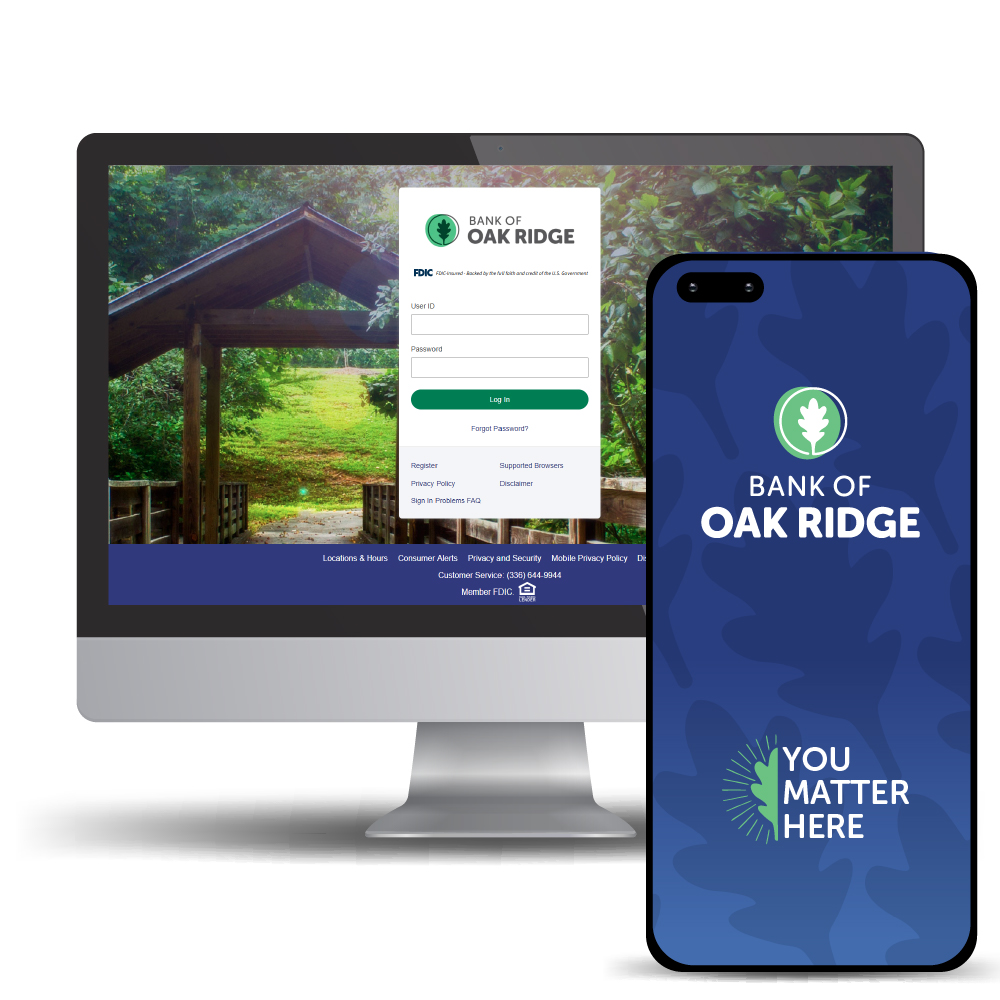
Bank of Oak Ridge mobile and online banking is easier, more secure and has new features and tools you’ll love. You can download the app and log in to the new experience now!

  • (New!) Fresh look & feel
  • (New!) Multi-factor authentication & security features
  • (New!) Credit score check and monitoring
  • (New!) Financial management and budgeting tools
  • (New!) Positive Pay fraud prevention for business available in online banking
  • (New!) Secure Chat with a Bank of Oak Ridge banker in mobile and online banking
  • (New!) Re-order checks through online banking
  • (New!) Zelle for small business with QR code
  • (Still available!) Zelle for individuals
  • (Still available!) Enroll, view & download e-statements & e-Notices in online banking
  • (Still available!) Card controls + real-time alerts for personal and business
  • (Still available!) Bill pay for personal and small business in online banking
  • (Still available!) Digital Wallet (Apple Pay, Google Pay, Samsung Pay) in the mobile app
  • (Still available!) Mobile deposit on the mobile app & more!


Log In to Online Banking or Download the Mobile App Now

Our all-in-one mobile app now supports both personal and business clients in one easy-to-access place. If you haven’t already, you can select below links to download the updated mobile app now.


 

*Data rates may apply.

Frequently Asked Questions

We’re excited to share all the great features that come with this upgraded experience. That being said, we hope you’ll bare with us when logging in for the first time. The process is new, and our goal is to answer any questions you have or resolve any issues as soon as possible.

If you’d like more support, feel free to reach out directly to your banker, contact us through our contact form, through Chat, call Client Connect or one of our locations, or simply stop by a location and we’ll be glad to assist you.

Mobile Banking

  1. Update or Download the Mobile App
    • If you have previously downloaded our mobile app, you will be prompted to update upon sign-in. Otherwise, feel free to visit the App Store or Google Play and search for ‘Bank of Oak Ridge Mobile’ or click the links above to download the all-in-one app.
  2. Log In with Username and Password
    • The first time you log in to the upgraded experience, you will be prompted to enter your username and password. For security purposes you will not be able to use Fingerprint ID or FaceID on this initial sign-in. This will be available for set-up after this first sign-in is complete. If you don’t remember your password, please use the below ‘Forgot Password’ button.
  3. Multi-Factor Authentication
    • The first time you successfully sign-in, you will be prompted to set up Multi-Factor Authentication. This security enhancement will ask you to select a mobile phone number connected to the account and verify through a text message. You’ll use this code to verify you account and log in to the app and online banking moving forward. Do not share this code with anyone. Bank of Oak Ridge will never ask for this code.
    • If you are unable to verify your account with Multi-Factor Authentication, or the phone numbers are not up to date, please contact Bank of Oak Ridge or visit one of our convenient locations.

Online Banking

    • You will be able to log in to online banking through our homepage or the ‘Online Banking’ button at the top right of any Bank of Oak Ridge webpage. Simply log in with your username and password, and you’ll be prompted to set up multi-factor authentication. If you are unable to verify your account with multi-factor authentication, or the phone numbers are not up to date, please contact Bank of Oak Ridge or visit one of our convenient locations.

Click here to reset your password:

Reset Password

If you have any questions or concerns, please reach out to us through our website contact form, our website Chat feature, Client Connect or a branch phone number, or by visiting one of our locations. Please bare with us, as call and support times may be slightly longer than usual.

Thank you for banking local.

Business Mobile Banking

  1. Download the Mobile App
    • Our mobile app is now an all-in-one business app so you can complete your banking for personal and business all in one place. You can now uninstall the standalone business app and download our all-in-one app by clicking the app links above or by searching ‘Bank of Oak Ridge Mobile’ in the App Store and Google Play.
  2. Log In with Username and Password
    • The first time you log in to the upgraded experience, you will be prompted to enter your username and password. For security purposes you will not be able to use Fingerprint ID or FaceID on this initial sign-in. This will be available for set-up after this first sign-in is complete. If you don’t remember your password, please use the ‘Reset Password’ link below.
  3. Multi-Factor Authentication
    • The first time you successfully sign-in, you will be prompted to set up Multi-Factor Authentication. This new security enhancement will ask you to select a mobile phone number connected to the account and verify through a text message. You’ll use this code to verify you account and log in to the app and online banking moving forward. Do not share this code with anyone. Bank of Oak Ridge will never ask for this code.
    • If you are unable to verify your account with multi-factor authentication, or the phone numbers are not up to date, please contact Bank of Oak Ridge or visit one of our convenient locations.

Business Online Banking

      • You will be able to log in to online banking through our homepage or the ‘Online Banking’ button at the top right of any Bank of Oak Ridge webpage. Simply log in with your username and password, and you’ll be prompted to set up multi-factor authentication. If you are unable to verify your account with multi-factor authentication, or the phone numbers are not up to date, please contact Bank of Oak Ridge or visit one of our convenient locations.

If you can’t remember your password, click here to reset it: 

Reset Password

If you have any issues or concerns, please reach out to us by contacting your banker, or through our website contact form, our website Chat feature, Client Connect or a branch phone number, or by visiting one of our locations. Please bare with us though, as call and support times may be slightly longer than usual.

Thank you for banking local.

Upon your first sign-in with mobile or online banking, you will be prompted to enter your username and password. For security purposes you will not be able to use Fingerprint ID or FaceID on this initial sign-in.

Forgot Password

If you cannot remember your password, start with the below ‘Reset Password’ link. You will be prompted to verify your information and set up multi-factor authentication. If you are unable to verify your account, or your contact information is not up-to-date, please contact Bank of Oak Ridge or visit one of our convenient locations.

Click here to reset your password:

Reset Password

Forgot Username

If you cannot remember your username, please reach out to a Bank of Oak Ridge team member by by contacting your banker, or through our website contact form, our website Chat feature, Client Connect or a branch phone number, or by visiting one of our locations.

Contact us to get a call back:

Website Contact Form

Please bare with us though, as call and support times may be slightly longer than usual.

Thank you for banking local.

Upon your first sign in to the upgraded mobile or online banking platform, you will be prompted to set up multi-factor authentication (MFA) for mobile and online banking. This should be a seamless process. If you find that you are unable to access your account, please see below for some quick tips:

  1. My Phone Number Didn’t Show Up as an MFA Option
    • If this occurs, please reach out to a Bank of Oak Ridge team member for assistance.
  2. My Phone Number or Contact Information is Incorrect or Outdated
    • If this occurs, please reach out to a Bank of Oak Ridge team member for assistance.
  3. What Do I Do with the MFA Code I Receive?
    • When you sign in for the first time, and you’ve received your multi-factor authentication code through the mobile device you selected, you copy and paste that code into the designated box from either the mobile or online banking page you requested the code from. Do not share this code with anyone. You will receive a text from us with a verification code only when you’re logging in or taking an action that you started yourself – this is a normal part of the secure sign-in process. Outside of these moments, we will never ask for that code.
  4. I’m Receiving a Message to Contact Bank of Oak Ridge. Why?
    • If you are receiving a message to contact Bank of Oak Ridge, please reach out through one of our direct outreach channels for assistance.
  5. How Do I Know This MFA Text I Received is Legitimate?
    • You will receive a text from us with a verification code only when you’re logging in or taking an action that you started yourself – this is a normal part of the secure sign-in process. Outside of these moments, we will never ask for that code. If you are unsure, do not take any action or provide any information. Instead, reach out to a Bank of Oak Ridge team member directly or visit one of our convenient locations to verify the request.

Personal Enrollment

To enroll in online banking and mobile banking, you can follow these steps:

  1. Enroll: Click the below ‘Enroll’ link. You will be invited to enroll in online banking and log in.
  2. Set Up Multi-Factor: You will be prompted to set up multi-factor authentication.
  3. Download the Mobile App & Sign In: Once successfully logged into to online banking, you can download the mobile app and sign in with your new online banking username and password. From there you’ll be able to set up Fingerprint ID and FaceID and begin using the mobile app tools and features!

Click here to enroll in online banking:

Personal Online Enrollment

Small Business Enrollment

To enroll in online banking and mobile banking for business, simply complete the below small business enrollment form. Once submitted, one of our team members will reach out to finalize your enrollment and walk through your set-up.

Small Businesses Online Enrollment Form:

Business Online Enrollment


If you have any issues or concerns, please reach out to us by contacting your banker, or through our website contact form, our website Chat feature, Client Connect or a branch phone number, or by visiting one of our locations. Please bare with us though, as call and support times may be slightly longer than usual.

If you are a small business using ACH with Bank of Oak Ridge, please visit our ACH Upgrade page by clicking the button below. This page includes the new features and video resources on setting up users, templates, and more!

Click here for ACH upgrade information & resources:

ACH Upgrade Resources

If this is an urgent need, please reach out directly to your banker or contact the following team members for assistance.

Multi-Factor Authentication

Adds an extra layer of security by verifying it’s really you, helping protect your personal and business accounts from unauthorized access. If you have questions about the multi-factor authentication process, a team member will be happy to assist you.

Positive Pay

Designed for business accounts, Positive Pay helps prevent check fraud by reviewing issued checks against those presented for payment. Contact us to learn more about this added layer of protection.

Card Controls

Gives you more control over card usage, helping reduce fraud by limiting when, where, and how your card can be used.

To manage your card controls, simply visit the ‘Cards’ tab in your mobile app or online banking. There you can turn your card on and off, provide travel plans to the bank, reset your PIN, view insights and more!

Card Alerts

Notifies you of purchases and unusual activity in real time, helping you spot potential fraud and take action quickly.

Set card and account alerts through online banking and your mobile app. Simply visit settings

eStatements & eNotices

Provides secure, digital delivery of statements and notices, reducing the risk of mail fraud and keeping sensitive information protected. You can enroll by logging into online banking and selecting ‘Statements’.